


 Unfortunately your shopping cart is empty


 Returns
 Chat with Us
 About Us
 My Orders
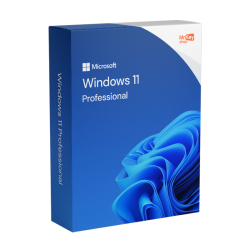
 $62.87
$159.86
$62.87
$159.86


Buy a genuine Windows license for any version, from Windows 7 to Windows 11. Perpetual product keys with no subscription, secure and traceable payment, money-back guarantee and delivery by email within minutes of your order.
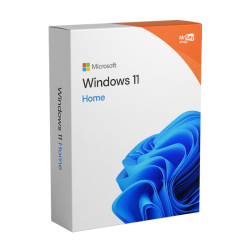 $53.28
$151.33
$53.28
$151.33
 $85.25
$204.62
$85.25
$204.62
 $41.56
$133.21
$41.56
$133.21

 $150.27
$151.33
$150.27
$151.33
 $95.91
$106.57
$95.91
$106.57
 $39.42
$102.31
$39.42
$102.31
 $39.42
$98.04
$39.42
$98.04
 $95.91
$426.31
$95.91
$426.31


Buying the Windows operating system licence that’s ideal for your needs has never been so simple and affordable. Mr Key Shop offers a comprehensive catalogue of genuine lifetime Microsoft licences, guaranteeing competitive prices with up to 70% off the official list price, immediate digital delivery and specialist technical support for every stage of installation and activation. At Mr Key Shop, you can purchase a Windows activation key that is legitimate, secure and perfectly suited to your needs.
Our operating system licences cover every generation of Microsoft Windows hardware: from the latest version, Windows 11, with its integrated artificial intelligence features and maximum security, right through to legacy versions such as Windows 7, which are still used in specific industrial and professional environments.
Will this key work in my country?Windows product keys are sold as Global keys: they are not tied to a country and they activate the same way wherever the PC is. What matters is the language of the installation, and that is your choice at install time, because the ISO you download from Microsoft contains every language. Two things do change by country, and neither affects the key: the currency you are billed in, and the VAT applied to the order. |
|
Developer |
Microsoft |
|
Editions available |
Home, Pro, Enterprise |
|
License type |
Retail, perpetual |
|
Coverage |
Global |
|
Devices per license |
1 PC |
|
Reinstalls |
Unlimited on the same PC |
|
Delivery |
Email, within minutes of payment |
|
Format |
Digital, ESD. No physical shipment |
|
Platform |
PC |
|
Included |
Product key, official Microsoft ISO link, installation and activation guide, invoice |
|
Support |
free English-speaking technical support, before and after activation |
|
Also known as |
Windows key, Windows product key, Windows activation key, Windows CD key |
A Windows operating system license is a one-off purchase, so it is worth choosing the right version rather than the newest one. Start from what is inside the machine.
|
If your PC has |
Buy |
Why |
|
8 GB+ RAM, CPU from 2018 onward, SSD |
Full use of SSD speed and current processors, with the strongest security baseline |
|
|
4 to 8 GB RAM, dual core CPU, SSD or HDD |
The best balance of performance and compatibility for most PCs in use today |
|
|
2 to 4 GB RAM, older processor, tablet |
Very light on resources, good for reviving netbooks and tablet PCs |
|
|
Under 2 GB RAM, legacy hardware |
The lightest of the four, still used on industrial and offline machines |
|
Windows 11 |
Windows 10 |
Windows 8.1 |
Windows 7 |
|
|
Design |
Minimalism and glass |
Productivity and live tiles |
Touch and start screen |
Classic desktop |
|
Security |
Highest, TPM 2.0 required |
High |
Medium |
Basic |
|
Start menu |
Centered, simplified |
List plus tiles |
Full start screen |
Classic menu |
|
Store and apps |
Windows and Android apps |
Windows Store |
First Store version |
None |
|
Startup |
Instant |
Very fast |
Optimized, fast boot |
Standard |
|
Microsoft support |
Active |
Ended, 14 October 2025 |
Ended |
Ended |
|
Target hardware |
Modern PCs, 2018 onward |
Any modern PC |
Older tablets and PCs |
Legacy and offline PCs |
|
Windows Home |
Windows Pro |
|
|
Main use |
Personal and family |
Professional and business |
|
BitLocker encryption |
Not available |
Included, protects data on the drive |
|
Remote Desktop (host) |
No |
Yes, reach your PC from anywhere |
|
Group Policy management |
No |
Yes, essential for IT administrators |
|
RAM supported |
Up to 128 GB |
Up to 2 TB |
|
Windows Sandbox |
No |
Yes, for testing apps safely |
If you use the PC for work, or you store customer data on it, a Windows Pro license is the one to buy, for security and for compliance.
A Windows license is the agreement that gives you the right to install and use the operating system on a device. In practice it takes the form of a product key, a 25-character alphanumeric code in the format XXXXX-XXXXX-XXXXX-XXXXX-XXXXX, which validates your copy with Microsoft.
Without a valid license Windows still installs, but it runs as unactivated: personalization is locked, an activation watermark sits on the desktop, and the system falls outside the normal update schedule. A genuine Windows key removes all three.
Sellers use the words Windows key, Microsoft product key, Windows activation key and Windows CD key interchangeably, and none of them tells you what you are buying. Windows keys are not all the same thing: what matters is the license type behind them.
|
Retail license |
OEM license |
Volume license |
|
|
Tied to |
Your Microsoft account |
One motherboard |
An organization |
|
Reinstall after a format |
Unlimited |
Unlimited, same board only |
Depends on the agreement |
|
Move to a different PC |
Yes |
No |
Not transferable to individuals |
|
Survives a motherboard failure |
Yes |
No |
Not applicable |
|
Sold to individuals |
Yes |
With hardware |
No |
|
Typical cost |
Below Microsoft list |
Lowest |
Free or a few dollars |
|
Does it actually activate? |
Yes, permanently |
Yes, one motherboard only |
No, or until Microsoft revokes it |
Mr Key Shop sells Retail licenses. That is the distinction behind almost every complaint you read about keys that stop working: a key sold at an implausible price is usually an OEM key bound to somebody else's motherboard, or a volume key that was never meant to leave the organization it was issued to, and Microsoft can deactivate it.
With a Retail license, yes. The license links to your Microsoft account rather than to the hardware, so you can deactivate it on the old computer and activate it on the new one. Sign in with the same Microsoft account, run the activation troubleshooter and select the option for having changed hardware on this device.
With an OEM license, no. An OEM key is permanently bound to the motherboard of the first PC it activates, and it dies with that board. This is the practical reason a Retail license is worth the difference: the moment you replace the machine, an OEM key becomes a purchase you have to make again.
If you are building a new PC and your current key will not move, that is the case for buying a new one rather than a sign that something went wrong.
If the PC came with Windows preinstalled, the license key for Windows is usually embedded in the firmware and you will not see it anywhere: Windows reads it at install time. If you bought a license, the key is in the confirmation email, or on the card inside the retail box.
To check the key stored in firmware, open Command Prompt as administrator and run:
wmic path softwarelicensingservice get OA3xOriginalProductKey
If nothing comes back, there is no key in firmware. That is common on machines upgraded from an older version, or where Windows is running on a digital license linked to a Microsoft account. In that case the key cannot be recovered, and the only way to activate a fresh installation is a new license.
A perpetual license is a one-off purchase. You pay once and you keep the right to use that version indefinitely, with no expiry date and no monthly or annual fee. Three things follow from it:
It depends entirely on what is being sold, and the price is a signal rather than an answer.
Legal. A genuine perpetual license released by a business that no longer needs it can be resold, and it does cost far less than a first-hand one. This is the market Mr Key Shop operates in, and it is why our prices sit well below the Microsoft list price without anything being wrong with the license.
Four checks that separate the first case from the other three, on any seller:
You can read how we source and verify our licenses on our technical audit and legitimate software licenses pages.
No. A Windows CD key, a Windows product key and a Windows activation key are three names for the same 25-character code.
CD key is the oldest of the three. It comes from the years when Windows shipped on a disc and the code was printed on the sleeve inside the box. There is no disc any more, but the name stuck, and plenty of sellers still list a Windows CD key rather than a product key. Microsoft itself uses product key, which is why the wording changes depending on where you buy.
What changed is the delivery, not the license. The code you receive by email is the same code that used to be printed on the sleeve, it carries the same rights and it activates the same way. So if you came here looking for a Windows CD key, this is the right place: what we sell is that, delivered by email instead of in a box.
No. There is no freeware edition of Microsoft Windows. You can download the ISO from Microsoft and install without entering a key, but that is evaluation mode: personalization is locked, the activation watermark stays, and continued use requires a license.
Sites promising free Windows, or keys at prices that do not add up, are selling one of the three things described above.
Microsoft lists Windows 11 Home and Windows 11 Pro at $ 139.00/ £ 119.99 / € 145,00 and $ 199.99 /£ 219.99/€ 259,00 respectively.
Our prices are lower because of where the licenses come from, not because of what they are. Mr Key Shop deals in perpetual licenses released by businesses that no longer need them, and passes on the difference between a first-hand license and a released one. What you receive is a full Retail license with the rights described above.
Windows prices for each version are shown on the product pages in this category and are kept current, promotions included. Older versions cost less than newer ones, so if your hardware is the constraint, the cheaper option is often also the correct one.
The Microsoft ecosystem offers extraordinary flexibility thanks to a wide range of professional programmes and essential tools for every need. For those working in technical design, CAD software is the industry standard: you can opt for the flexibility of an Autodesk Subscription or consider valid alternatives such as ZWSOFT and the power of 3D modelling with a Rhino 3D lifetime licence. When it comes to office and business productivity, an Office 2024 licence provides all the latest computing and writing tools, whilst for the management of complex network infrastructures, the ideal solution is Windows Server 2025. Finally, data and system protection remain essential: it is advisable to protect your device from cyber threats by installing the Norton 360, the effectiveness of the antimalware Watchdog and the privacy guaranteed by a VPN for PC, not forgetting to secure your files using advanced backup software and solutions dedicated to data recovery.
Purchasing and downloading Windows from Mr Key Shop is the ideal solution for those seeking efficiency without compromising on security. Thanks to the ESD digital distribution system, we eliminate physical shipping times, allowing you to install your new operating system within minutes of purchase.
Immediately after the transaction, our system automatically sends a complete kit for immediate operation:
Installing Windows using a digital licence purchased from Mr Key Shop is a smooth and simplified process, designed to get you up and running in minutes. No need to wait for couriers: everything you need arrives instantly in your e-mail.
The 3 Steps for Installation
In addition to immediate speed, receiving a product key via email is the most sustainable choice. By eliminating physical transport and plastic and paper packaging, we reduce our environmental impact and CO2 emissions together. We are a 100% Eco-Friendly company because we believe that maximum technological efficiency must go hand in hand with protecting the planet.
Activation is the process that validates your Product Key with Microsoft servers, unlocking all the features of the operating system and ensuring access to vital security updates. With original licences provided by Mr Key Shop, activation is permanent, legal and secure. How to activate Windows in seconds Once installation is complete, follow these steps to make your system genuine:
Supported activation methods
Depending on the version you purchased, you may encounter two validation modes:
Most of the cheap Windows keys you find online are sold through multi-seller marketplaces. You buy from a merchant listed on the platform, and if the key does not work, the platform passes you back to that merchant: the response depends on them, not on the site you paid.
We sell directly. The license comes from us, the invoice comes from us, and if something goes wrong with activation you talk to us, before and after the sale. Our sourcing is documented on the technical audit page, purchases are covered by a money-back guarantee, and the store is certified by Trusted Shops with public reviews on Trustpilot.
Purchasing Microsoft Windows from Mr Key Shop means, first and foremost, saving on the list price, but also receiving your order within seconds of purchase. Check your inbox, we will send you an email containing the following:
See each version of Microsoft Windows to see the minimum requirements.
Microsoft Windows is the operating system developed by Microsoft that allows you to use your PC and manage programs, files, and peripherals with a simple and intuitive graphical interface. It is available in different editions designed for specific needs:
The most popular versions are Windows 10 and Windows 11, with regular security and feature updates. At Mr Key Shop, you can purchase original Microsoft licenses for the main editions (Home, Pro, and Server), activate them online in a few minutes, and receive complete instructions for download, installation, and activation.
No. There are no official freeware versions of Microsoft Windows: to use Windows legally and continuously, you always need a valid licence.
Here are the key points:
If, on the other hand, you need genuine, updatable and secure Windows, the correct solution is to purchase an original licence.
Over the years, Microsoft has released numerous versions of Windows, designed for different needs: home users, businesses, servers and mobile devices. The main families are:
At Mr Key Shop, you will find the most modern and supported versions of Windows (such as Windows 10 and Windows 11, in Home and Pro editions), with original licences, quick digital activation, installation guide and dedicated technical support.
There is no such thing as the ‘best’ operating system: the choice depends on how you use your PC. In general, however, the main features are as follows:
ChromeOS
For most home and business users, Windows remains the most versatile choice, thanks to its compatibility with most programmes and games.
It's right to want to protect Windows from viruses and threats, but it's not a good idea to ‘defend yourself against updates’: security updates are a fundamental part of system protection.
Here's how to really secure your Windows PC without sabotaging security with the wrong settings. ?
1. Use (properly) the built-in Windows tools
Microsoft Defender Antivirus
On Windows 10 and 11, you already have an excellent built-in antivirus:
Settings > Update & Security > Windows Security.Windows Firewall
2. Additional antivirus: when it makes sense
If you want an extra layer of protection (especially in a business environment):
3. Updates: they are a defence, not a danger
Windows, driver and programme updates close loopholes that malware exploits. Blocking them means leaving doors open to attacks.
What to do in practice:
Settings > Windows Update → activate automatic updates.4. User behaviour: the real weak point
Even the best antivirus software cannot save you from every wrong click. Here, you are the ‘front line’:
5. Regular backups: your insurance policy
If something goes wrong one day (virus, ransomware, broken hard drive), backups are your real ‘lifesaver’:
6. Smart extras for more security
It depends on the version. Older versions cost less than current ones, and every price on this page is for a perpetual Retail license with no renewal. The prices shown on the product pages are current, promotions included, and they sit well below the Microsoft list price because the licenses are released business licenses rather than first-hand ones.
If it is a Retail license, yes: deactivate it on the old PC, sign in with the same Microsoft account on the new one and run the activation troubleshooter. If it is an OEM license, no: it is bound to the motherboard of the first PC it activated and cannot be moved.
Nothing. They are three names for the same 25-character code that validates your copy of Windows with Microsoft. You will also see it called a CD key, which is a term left over from when software shipped on discs.
No. A Retail license can be reinstalled as many times as you need on the same PC, and moved to a different one by deactivating the previous machine. Keep the confirmation email: the key in it is the license.
Not quite, and the difference is worth knowing. A Windows CD key is the 25-character code you type in to activate. A digital license is what Windows creates afterwards, linking that activation to your Microsoft account and to the hardware. You use the key once; from then on the machine reactivates from the digital license, which is why a reinstall does not normally ask for the code again. Keep the key anyway: you need it if you move the license to a different PC.


 Chat with us
 Ita
Ita
 Eng
Eng
 Deu
Deu
 Esp
Esp
 Fra
Fra